Search Result For "face id"

iPhone X: The five worst features in Apple's best phone

There’s a lot to like, but Apple needs to rethink some things for 2018's iPhones.

For well over two months, my days have ended and begun with the iPhone X. Compared to older iPhones, the X feels impressively fast, slim and, with 5.8 inches of screen space, satisfyingly spacious. But as I've grown to appreciate some of its finer points, I've also discovered the traits that make me roll my eyes, gnash my teeth and occasionally erupt with a well-chosen expletive.

The funny thing is that almost all of these ire-inducing "quirks" stem from Apple's redesign of the iPhone X, which removed the home button and installed a bunch of swipes and taps to cover all navigation bases.

On one hand, Face ID and gestures prove that iPhone users can live without a home button. On the other, learning the ropes takes time, and the swipey stand-ins don't always make a lot of sense. Some iPhone X gestures feel half-baked.

So here we go, my five personal worst iPhone X navigation offenders. Stay tuned for a future piece on some of the things I truly do love about the iPhone X.

Watch this:Five annoying things about the iPhone X

Face ID never works when I most need it

Face ID, Apple's replacement for the secure fingerprint reader, uses the iPhone X's front-facing camera to approve mobile purchases and unlock the phone.

It works by making a 3D map of your eyes, nose and mouth -- except when it doesn't. Face ID recognizes me often, but fails enough times to make me notice. For example, I have about a 50-50 success rate while wearing my polarized sunglasses.

Face ID doesn't work when your face is stuffed in a pillow
Face ID doesn't work when your face i
stuffed in a pillow.
CNET
When it doesn't work is when I want it to most: as soon as I wake up in the morning. Part of the problem is biological. I'm near-sighted, which means that when I first reach for the phone while my glasses and contacts are resting in their cases, I wind up holding the phone closer to my face than the 25 to 50 centimeters that Apple recommends.

And then there's the fact that in my groggy morning state, I'm lying on my side with either one eye closed, or my face buried in my pillow.

There's no way Face ID is boring its way through that, and it's not Apple's fault.

What is Apple's fault is that the iPhone X doesn't have a satisfying backup plan to my morning squinty-eye. With Face ID, you don't get an immediate second chance to biometrically unlock the phone, not the way you do when the fingerprint scanner on a home button fails; you just tap it again.

No such luck here. You can wait some long seconds only to have to try again, or lock and unlock the phone to kickstart a new Face ID scan.

More often than not, I wind up typing in my 6-digit password, which is faster than waiting for Face ID to maybe or maybe not unlock. This gets annoying when you do it multiple times a day, every day. I'd love a biometric backup, or a faster do-over time if Face ID misses the scan the first time around.

Tip from David S.: 

Regarding Face ID, you can re-drive a biometric check by "wiggling" the home bar after a failure. Just move it up and down slightly and quickly and it should re-check.

Tip from Jonathan K.:

One trick to fix some failures is to swipe up and then down on your unlock screen while holding your finger down the whole time. This allows you to unlock notifications without opening your home screen.

Bleh battery life

If you're switching from an older iPhone with battery life that can barely hobble through a single day (especially if Apple did this), the iPhone X is a fantastic upgrade. At least at first.

The iPhone X will last longer than your old iPhone, but not as long as a $1,000 handset should.
The iPhone X will last longer than your old iPhone,
but not as long as a $1,000 handset should.
James Martin/CNET
After two months, I noticed a steep battery decline. Of course your charge will take a hit every time you stream music or video, or use navigation. That's life with a phone. But even on days when I didn't engage these things, I found myself topping up the power reserves before going out for the night, unconvinced my phone would make it through the evening activities.

When you live on your phone -- texting, looking up stuff online, reading e-books -- that uncertainty makes the difference between a device you can trust and one you have to constantly manage.

This isn't just anecdotal, either. In CNET's looping-video tests, the iPhone X lasted just shy of 11.5 hours average after 9 tests. That's two hours less than the iPhone 8and iPhone 8 Plus results with the same test, and six hours less than the Samsung Galaxy Note 8 (17.5 hours).

Anecdotally, it lasts longer than the iPhone 8 in real-life use, but peters out before the 8 Plus loses steam.

These time windows don't seem so short in a vacuum, but when you compare the results across the board, the iPhone X -- the most expensive mainstream phone you can buy -- drains as quickly as some midrange phones that cost less than half the price, if not faster.

To make matters more frustrating, Apple hides the iPhone X battery percentage meter; it isn't visible at a glance. Instead, you have to swipe down from the top of the phone on the right side of the notch to call up the Control Center. Only then can you keep a detailed tab on how much juice you have left.

Maps navigation shortcut only goes one way

Tap this to get back to your ongoing Google Maps navigation.
Tap this to get back to your ongoing
Google Maps navigation.
Jessica Dolcourt/CNET
I use maps navigation quite a lot. When you pop out of either Google Maps or Apple Maps to do something else, the iPhone X helpfully puts a tiny blue Tic Tac around the clock, turning it into a nifty little button you can tap to pop back into the map again.

This is great, but Apple stops short. See, you can toggle from any app back into the map, but you can't toggle from the map back to what you were doing before. So if you're reading an article, you can pop into the map to check on the directions (using the shortcut) but won't be able to return to the story (no shortcut).

When you get used to pressing that shortcut button a couple dozen times during a long trip, you'll be cursing Apple that it only goes one way. Yes, there are other ways to return to a previous app (like swiping right on the bottom bezel of the screen).

The main point is that Apple is training you to tap a space to do one half of a task. Why ask you to apply a completely different muscle memory to get back? Hopefully a future version of the software will make toggling a two-way street.

By the way, the shortcut also works with the phone app (the button turns green), voice memos (red) and some third-party apps.

Is the alarm on or what?

I'm an inveterate nervous-alarm-setter, even on weekends. I just can't relax unless I know I won't oversleep (yes, I have problems).

That doesn't stop me from waking up bleary-eyed in the middle of the night second-guessing if I set the alarm for the right time, or even set it at all. I would like to be able to glance at the iPhone X and immediately see the alarm clock icon reassure me, before drifting back to sleep.

This is how it was pre-iPhone X and still is on the iPhone 8 and 8 Plus. Yet for some reason, Apple has decided to bury this information. You can still see it -- and your remaining battery percentage -- but you have to pull down the Control Center first.

I don't want to mess with my phone at 4am. I don't want to swipe a screen or use more brain cells than I have to. In short, I don't want to do anything that could wake me up and make falling back asleep harder than it needs to be.

But the biggest problem is…

The first iPhone was so beloved because -- in a world of hard-to-use phones that acted like mini computers with file systems, keyboards and styluses -- it was simple. Anyone could pick it up and figure it out.

10 years on, you can't use the iPhone X without a tutorial, which Apple does provide. Things that should be easy are complex. For example, don't you swipe up on the camera icon to open it from the lock screen? No, you hard-press and then release it, a change from the previous version, or swipe right.

In other words, you have to know how to interact with the button -- which has changed from the previous version -- or know how to gesture, in order to open it. That's not a good user experience, especially for a company that's made simplicity and ease of use its watchword.

Ten years on, the iPhone X is rife with hidden gestures you just have to know, including powering down the phone
Ten years on, the iPhone X is rife with hidden gestures
you just have to know, including powering down the phone.
Lexy Savvides/CNET
A few more examples. Apple's also changed the buttons you press to take a screenshot and power down the phone. If you mess this up, you might find yourself accidentally calling 911.

You have to know which side of the Notch to swipe for the quick-controls in Control Center (the right side) and which to swipe for your notifications (the left). And now, you double-press the lock button to finish installing an app and hold it down to fire up Siri.

While these changes are absolutely learnable, and even become second-nature over time, the iPhone X's navigability is a far cry from the logical layout that made the iPhone stand out from every other phone of its day.

It's not that I wish the iPhone X reverted to the stripped-down style of the original iPhone. It's that Apple, in paving the way with some new technologies, had the opportunity to rethink how we use a phone, and wound up making it more complicated to use -- not less.

source:CNet

iPhone X: Five things I absolutely love

Other than the big screen and slim bezels.

One of the most daring -- and expensive -- phones of 2017, the iPhone X has some great design and software features that attempt to justify the stratospheric $1,000 price. It's got ultraslim bezels and an all-screen face, an excellent camera and cutting-edge face-scanning technology.

Of course, the iPhone X has more than a few maddening feature flaws that make me shake my head in disappointment, but after using the X for over two months, I've come to really love some of the subtler changes. They successfully make it much smoother and more useful than previous iPhones. And when you're using the phone for hours a day, every day, even small conveniences add up.

Here are the five that made the biggest impression on me, plus one runner-up that needs a little work.

Lock screen notifications for your eyes only

iPhone X gets cryptic with messages until you make eye contact
iPhone X gets cryptic with messages
until you make eye contact.
Jason Cipriani/CNET
Your notifications and alerts aren't anyone's business but your own, which is what makes this anti-Peeping Tom feature so great.

Give the lock screen a sidelong glance and your list of notifications simply shows you the apps that are alerting you: Gmail, text, Facebook Messenger and so on.

But when the iPhone X's depth-sensing Face ID camera recognizes you, the details of the alert fill in. You suddenly see the sender and the actual message; either the full text if it's short or an excerpt if it's long.

When Android phones begin adding similar advanced face-scanning technology -- remember, Qualcomm is making this technology available to all phones that use its Snapdragon 845 chipset -- I expect to see them adopt this approach, too.

Face ID saves time logging into websites

Face ID doesn't always work when I want it to, but when it does, it can whisk me right into password-protected websites such as Amazon and my bank. That saves me from having to type my password a million times. It works similarly to registering your fingerprint to access a site -- except you literally never have to lift a finger.

This is a feature you opt in to, so you don't have to use it if you prefer tight password control. You can also use Face ID to authenticate purchases, but that'll happen on a seller-by-seller basis.

Fancy portrait selfies

You can take selfies with the same cool lighting effects as you can with the rear cameras
You can take selfies with the same cool
lighting effects asyou can with the rear cameras.
Óscar Gutiérrez/CNET
With the iPhone X, Apple wants you to take even more portrait shots.

Both the iPhone 8 Plus and iPhone X give you new portrait lighting options (in beta) to give bokeh-effect photos some additional theatrical drama. But only the iPhone X extends the same courtesies to the front-facing camera.

Flip over to selfie mode and you're able to tap Portrait to gently blur the background and make your mug pop. You'll also be able to choose from lighting options: natural, studio, contour, stage and stage light mono. These can make a big difference in rounding out your self-portrait.

One thing to keep in mind: While Apple uses two rear cameras to achieve portrait mode on the iPhone X, 8 Plus and 7 Plus, portrait mode selfies rely on a single camera lens, assisted by software. Don't expect the same level of quality and detail as dual-camera portrait mode.

Check out what happens when you try taking portraits with the front-facing camera.

Easier app switching

The typical way to flip from one open app to another is to swipe up from the iPhone X's bottom edge until a carousel of apps appears, and then swipe right to leaf through those.

Another way that I find faster is to place your finger at the edge of the bottom bezel and then flick right. That opens your latest apps in full-screen mode -- the above carousel method shows you shrunken "thumbnail" versions that you can then expand once you've selected the one you want. This is especially useful if you want to go to an app you opened immediately before.

Tap to wake

Taking a page from Android phones, the iPhone X introduces tap-to-wake features, which means that when the screen is locked, you can tap the display to see the lock screen. (You can also raise the phone to wake the iPhone 6S and newer models, and the iPhone SE.)

When your iPhone's buddied up to you on a table or desk, tap-to-wake is a convenient way to see the time and date or the battery and Wi-Fi status. Plus you can peep your (obscured) notifications without having to unlock the phone, or even lift it.

Runner-up: Maps navigation shortcut

When you're in Google or Apple Maps, in the phone app or in voice memos and open any other app, a colored indicator bubble appears around the iPhone X's clock.

You can tap this bubble from any screen you're in to immediately return to your ongoing navigation, phone call or voice memo. It's a terrific, time-saving shortcut that I absolutely love.

Watch this:9 iPhone X tips and tricks

Here's a good example of why you might want to toggle between two screens. Say you're navigating for someone, and most of the route is freeway driving. You may want to pop out of the navigation to read an article then pop back in to give the driver prompts about the next turn ("5 more miles, then exit Page Mill Road").

The missing step is getting back to whatever you were doing before. Instead of being able to press the same shortcut button to flip back to your other task, you'll have to swipe out of the map and open your browser again or use one of the above task-switching methods. None of this is hard, but once you get used to a timesaving shortcut, you'll absolutely want to use it both ways.

Apple could have pushed just a little harder to make this feature that much better. Let's hope two-way shortcuts make it to the next iPhone.

source:CNet

How to Keep Your Family and Friends From Snooping on Your Laptop and Phone
Many of us are more security savvy than ever when it comes to our phones and laptops, but there’s one threat you might not be protecting against—the people inside your own home. Whether you’re worried about nosey housemates, clumsy kids, or horrible siblings, these are the steps to take to make sure your stuff stays private.

Lock it up

How to Keep Your Family and Friends From Snooping on Your Laptop and Phone
Image: Screenshot
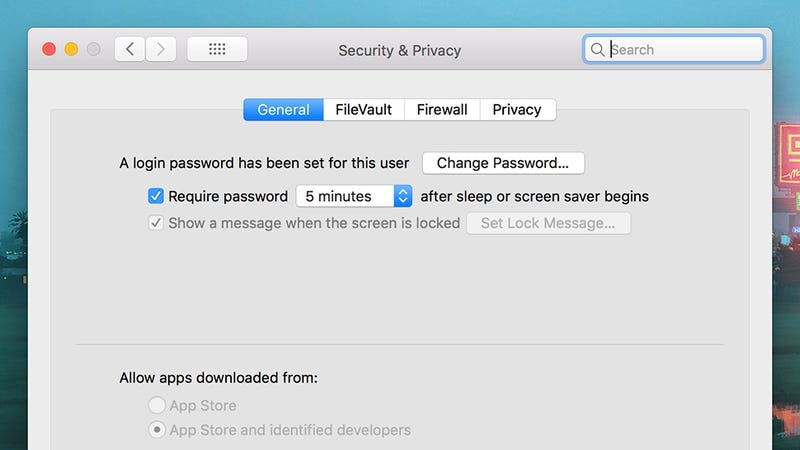
We’re assuming your smartphone and laptop are protected by some kind of password, PIN pattern, fingerprint scan, or face scan—and if not, get something in place immediately. It’s all that’s preventing anyone who passes by from getting into all your apps and files.

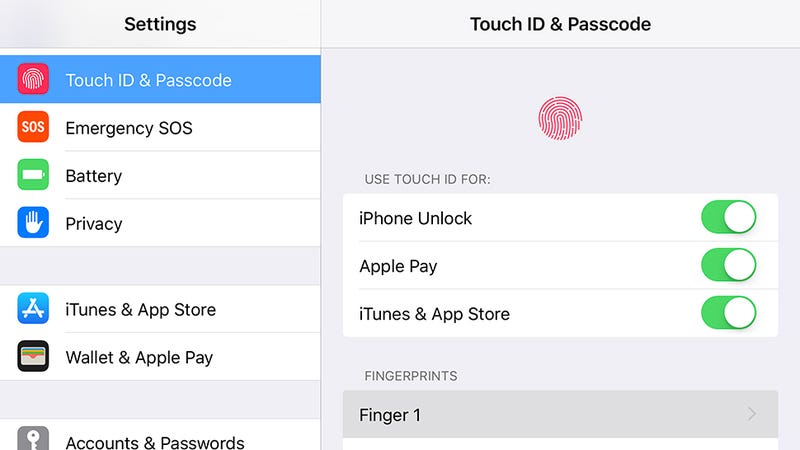
The options you need are easily found: Under Security & location in Android’s settings, under Touch ID & Passcode (or Face ID & Passcode) in the settings for iOS, under Accounts and Sign-in options in Windows settings, and under Security & Privacy in System Preferences on macOS.

You might also want to dial down the time-out delays on your devices, so they automatically lock almost immediately after you’ve stopped using them. If this delay is a long one, and you step away from your laptop or phone for a moment, someone else could take advantage.

This is under Display, Advanced, and Sleep in the Android Settings app, under Display & Brightness then Auto-Lock in the iOS Settings app, under System and Power & sleep in the Windows Settings app, and under Energy Saver in System Preferences on macOS.

Use biometric security

How to Keep Your Family and Friends From Snooping on Your Laptop and Phone
Image: Screenshot
The people you live with probably know you better than anyone else—it’s likely that they’ve seen you enter your phone PIN code hundreds of times, and they could probably have a good guess at your laptop password (they may have even asked for it to use your computer for something).

The point is, while PIN codes and passwords are very effective deterrents for complete strangers, they’re easier to get past for someone who sees you for a good chunk of every day, whether that’s because you’ve written your password down on a sticky note or they’ve been looking over your shoulder while you unlock your phone.

If you’ve got the option of using a fingerprint or a face scan to unlock your phone or laptop, then use it. As for your backup code and password, or if a code or password are your only options, make them difficult to guess and change them regularly. Using your birthday as your PIN is probably not the best idea if you want your roommate to leave your computer alone.

Remember that you’re more likely to let your guard down while you’re safe in the confines of your own home, so just be aware of who’s around you while you’re logging in and accessing sensitive sites and apps.

Check what you’re sharing

How to Keep Your Family and Friends From Snooping on Your Laptop and Phone
Image: Screenshot
Another advantage that the people you live with have over a random remote hacker—assuming they want to access your stuff—is that they’re on the same private wi-fi network as you. That makes it easier to get at your devices in certain situations.
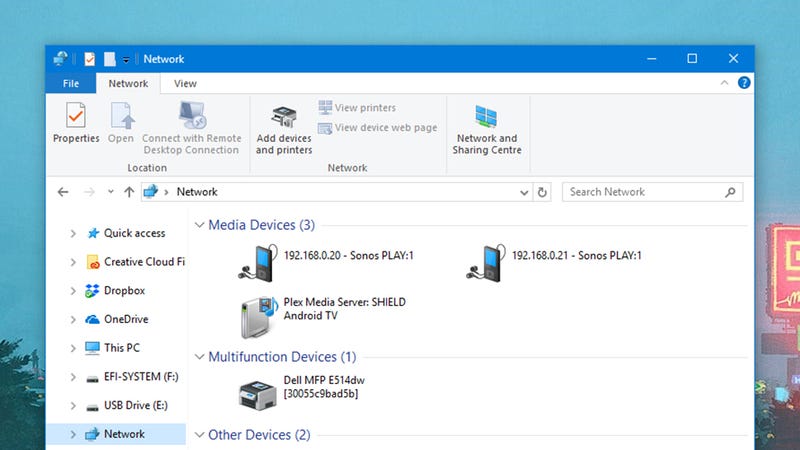
Make sure you’re not sharing more than you’d like to: On Windows (click Network in File Explorer) and macOS (click Sharing in System Preferences) it’s simple enough to check which folders are shared with the rest of the network. You’ll also see media servers, Chromecasts and the like in here, so remember that anyone on the network can get at these devices by design.

With a little bit of work, someone on your network can check all the traffic passing through that network, and potentially see some or all of the sites you’re visiting (though private information like credit card details and passwords will be encrypted).

The best and most complete way to protect against this, if you think someone in your home would make the effort to spy on your activities, is to get a VPN installed. You should also stick to HTTPS sites where your connection is encrypted, but this is now pretty standard for most of the popular sites on the web.

Put down limits

How to Keep Your Family and Friends From Snooping on Your Laptop and Phone
Image: Screenshot
There are probably going to be occasions when someone you live with wants to borrow one of your gadgets, and if you’re worried about them seeing stuff you’d rather they didn’t, you can take steps to make sure this doesn’t happen.

The easiest approach for Windows and macOS is to set up a separate user account that friends and family can use, so all of your apps and files are kept apart. On macOS you can also set up a guest user account, via Users & Groups in System Preferences, though this isn’t easily done on Windows—you’ll just have to set up a normal account through xxx and call it a guest account.

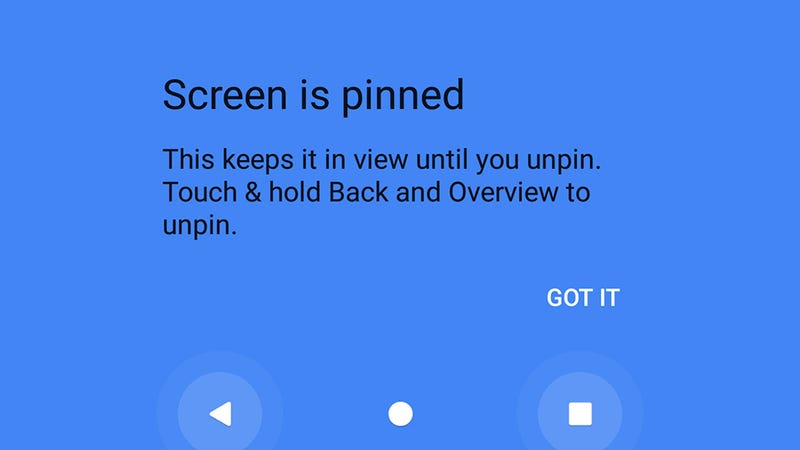
On Android, a good trick to remember is screen pinning. From Settings, tap Security & location, then Screen pinning and turn the feature on, with a PIN lock enabled. On the Overview screen (tap the square navigation button) you’ll then see a pin icon—select this and your friend or family member is locked inside that app until the Back and Overview buttons are pressed, and the PIN is entered. It means whoever is using your phone can only stay in the app you want them to stay in.

There’s a similar feature in iOS, called Guided Access, which you can find by tapping General then Accessibility from Settings. With the app that you want locked on screen, triple-click the Home button (or the Power button on the iPhone X) and again the phone will be restricted to that app only until you unlock your phone with your face, fingerprint, or PIN code.

Upgrade your security

How to Keep Your Family and Friends From Snooping on Your Laptop and Phone
Image: Amazon
Hopefully the people you find yourself living with are all trustworthy and loyal and easy to get on with, but if that’s not the case then you’ve got a choice of extra gear you can buy to keep your devices away from prying eyes and wandering hands.

A basic security safe will go a long way to keeping your laptop or phone well protected, and you can pick up models on Amazon for around the $60 mark. For even more peace of mind, you could even fix the safe permanently inside a cupboard or under a desk.

Speaking of locking down gadgets, laptop locks won’t set you back very much money at all, and will prevent someone from walking into your room and swiping the laptop while you’re out of the house/apartment/dorm room. Just check you’re buying the right cable for the lock type that’s integrated into your laptop before spending any cash.

If you’re really concerned about someone walking into your room while you’re away, then a security camera or motion sensor system isn’t too expensive or difficult to set up, and you’ve got a bunch of hardware options to pick from, many of which let you tune into a live feed right from your phone.

source:Gizmodo

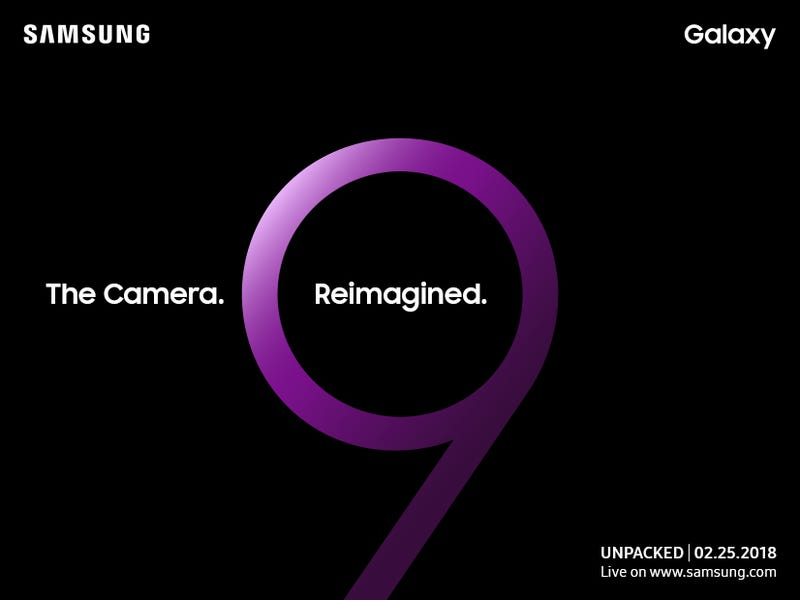
With Mobile World Congress coming up at the end of the month, the smartphone world is ramping up to peak hype in preparation for the Samsung Galaxy S9’s expected debut there on February 25th. The rumors are flying so we scoured the net and gathered up the most credible leaks and rumors to give you the best idea of what Samsung will announce in just a couple of weeks.

Design

One of the most confusing things about the Galaxy S9 based on early leaks and renders is that the front of Samsung’s new flagship is going to look almost identical to the Galaxy S8—right down to the curved display and the rounded corners on its screen. Even the arrangement of the sensors and cameras built into the top bezel look unchanged.
However, it’s a slightly different story around back, as Samsung has moved the S9’s fingerprint sensor to a more central location below the rear camera, rather than off on the right side like you get on the Galaxy S8. Additionally, the camera stack is aligned vertically, instead of horizontally, which gives the S9’s back a more symmetrical appearance. Everything else seems like it is pretty much the same as the Galaxy S8, including the brushed aluminum band holding the front and back glass panels together, and Samsung’s retention of the dedicated Bixby button on the left.

For those wondering about color options, Evan Blass claims the S9 will be available in midnight black, lilac purple, titanium gray, and coral blue.

Specs

Inside, the Galaxy S9 is expected to come with Qualcomm’s latest mobile processor, the Snapdragon 845, which would the first time this chip has been featured in a consumer device. Memory and storage for the S9 will stay at 4GB and 64GB respectively. However, VentureBeat claims the S9+ should get a small bump up to 6GB of RAM and 128GB of storage standard. The S9 and S9+’s OLED screens will remain the same size, at 5.8 and 6.2-inches, and should sport the same 2960 x 1440 resolution as well.

A nice upgrade, according to SamMobile, is that it seems the S9 will have stereo speakers, which should deliver a much richer audio experience than the mono setup on the S8. Finally, also according to Evan Blass, Samsung has wisely decided to retain a headphone jack for the S9, which should be a big boon for people who don’t want to deal with wireless headphones.

New Rear Camera

Despite the lack of official specs or info, Samsung is already teasing the power of the S9’s new camera. Based on yet more info from Evan Blass, that confidence might not be unwarranted, as it seems the S9 will feature the world’s first adjustable aperture camera on a smartphone that can switch between f/1.5 (which would also widest aperture on a smartphone) and f/2.4 on command. On top of that, there are reports from SamMobile saying that the S9 will have a new super slowmo feature that can record video at up to 480 frames per second at 720p. Meanwhile, the S9+ will also feature a second rear camera with 2x optical zoom similar to the one found on the Galaxy Note 8.

Other New Features

Here’s Everything We Think We Know About Samsung’s Galaxy S9 So Far
Image: SamCentral
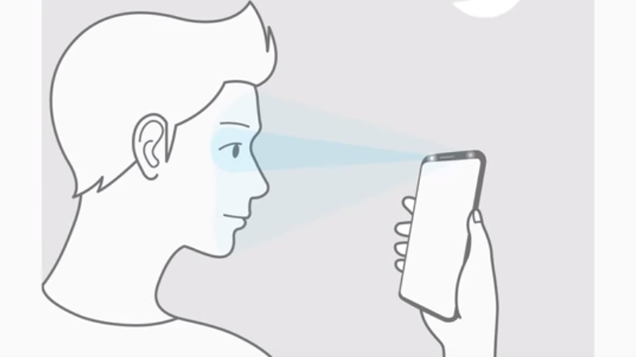
Currently, the S8 already has iris scanning and facial scanning biometric security options. But according to SamCentral, on the S9, Samsung will combine the two to create what it’s calling Intelligent Scan, which seems to be the company’s answer to Apple’s Face ID. Based on a teardown of the Note 8’s Oreo update, Intelligent Scan should leverage eye and face recognition to offer better security, while also enabling another new feature that people are calling 3D emojis.

That’s right, after Apple included Animoji on the iPhone X, it seems Samsung has come up with its own version of animated emojis that react to your facial movements. According to ETNews, the S9 will be able to create 3D characters based on a persons’s face, which can be used in place of emoticons in specific messaging apps. However, 3D emoji is currently just a placeholder name, while we wait for Samsung to announce something more official on February 25th.
The last big change is a new version of Samsung’s DeX Station, which has evolved from a standup dock-like affair to something more padlike. The pad will come with all the necessary ports to hook up a mouse, keyboard and an external display, so that you can transform the S9 into a mini desktop of sorts. Fingers crossed it improves on the last version.

Price and Availability

This last topic is the subject of some major trepidation, because in the fall, both Samsung and Apple released the most expensive phone each company has ever made in the $900 Galaxy Note 8 and the $1000 iPhone X. And unfortunately, based on rumors coming out of both South Korea and the UK, it seems like the price of the Galaxy S9 is going up too.

Based on rumored pricing in Asia and Europe, I’m estimating that the Galaxy S9 will go for between $775 and $800, which would be a significant jump up from the $700 to $720 the Galaxy S8 cost when it came out last year (prices varied slightly depending on the carrier). Meanwhile, the larger S9+ will most likely command its typical $100 premium over the standard model. This would make the S9 the most expensive Galaxy S yet, which probably isn’t too surprising for anyone keeping tabs on recent smartphone trends, but it is a bit worrying.

Here’s Everything We Think We Know About Samsung’s Galaxy S9 So Far
Image: Samsung
As for when you’ll actually be able to buy one, @evleaks claims that pre-orders will go live on March 1st, with orders shipping out two weeks later on March 16th. This would be one of the earliest Galaxy S launches in recent history, which is good for anyone who has been holding off on buying a new phone, and should ensure that Samsung is the first phone maker out there selling the next generation of phones.

So will the S9 be enough to steal the thunder away from Apple iPhone X? It’s hard to say yet, but if those camera rumors are true, that could be enough put Samsung back on top. Either way, I’ll be on the ground in Spain at Mobile World Congress covering all the news, so check back starting Feb 25th for the latest.

source:Gizmodo

MKRdezign

Contact Form

Name

Email *

Message *

Powered by Blogger.
Javascript DisablePlease Enable Javascript To See All Widget